Cover Photo by  Dylan McLeod
Welcome to part 2 of Cubase Key Commands to Boost Your Midi Editing Workflow, if you’d like to read our previous post, visit the link below.
Read: [Cubase Key Commands to Boost Your Midi Editing Pt. 1]
Got NumPads?
If you have a numeric keypad (or numpad for short) on your keyboard, you may want to utilize it as much as possible. Having a numpad means a serious boost in your workflow with Cubase. Below is an example setting for assigning various, but commonly used functions to a keypad:

In our case, we’ve assigned various quantization values to numpads 4 through 9

In practice, we may also assign key commands for Snap Type and Grid Type, in addition to assigning quantize values to numpads. For example, we can assign ‘R’ for Snap type, and ‘T’ (which is right next to ‘R’) for Grid type, giving us full control over perhaps the three most crucial time-related functions.

Midi Editing
As you are well aware, Cubase stands out as perhaps the most competitive DAW when it comes to MIDI editing. With a skillful combination of key commands, we can elevate our editing experience even further. Below is an example combination:
Useful for deleting overlapping notes
Shift+A: MIDI- Delete Overlaps / Shift+D: Delete Doubles
deleting notes Based on a Specific Condition
Ctrl+Alt+D – You may set conditions (length/velocity) before bulk deleting notes.

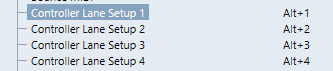
Controller Lane Setup
Alt+1~9: Controller Lane Setup

Delete Overlaps (Poly): This would delete overlapping two or more notes and make them into legato.
Legato: Extend a note’s end until the next note
Quantize MIDI Event Ends: The ends of the MIDI events are moved to the nearest grid positions.
Quantize MIDI Event Lengths: The ends of the selected MIDI events are cut off so that the events match the length quantize value. The start positions are kept.
Soft Quantize On/Off: Toggle soft quantize (quantize percentage)
Reset Quantize: Consider a scenario where you initially quantized your piano to 16ths but later decided to revert to the original state. This action will reset the currently selected quantization value, restoring the notes to their original positions.
And there you have it! We hope these were helpful! Keep in mind that we regularly update this list as soon as we discover more great shortcut ideas to enhance your workflow. Happy music writing!
[Study Pack]


Behind the Score – Discover the Harmony Secrets of Modern Film and Video Games.